
Workshop · iPhone Duo
iPhone Duo Pack.
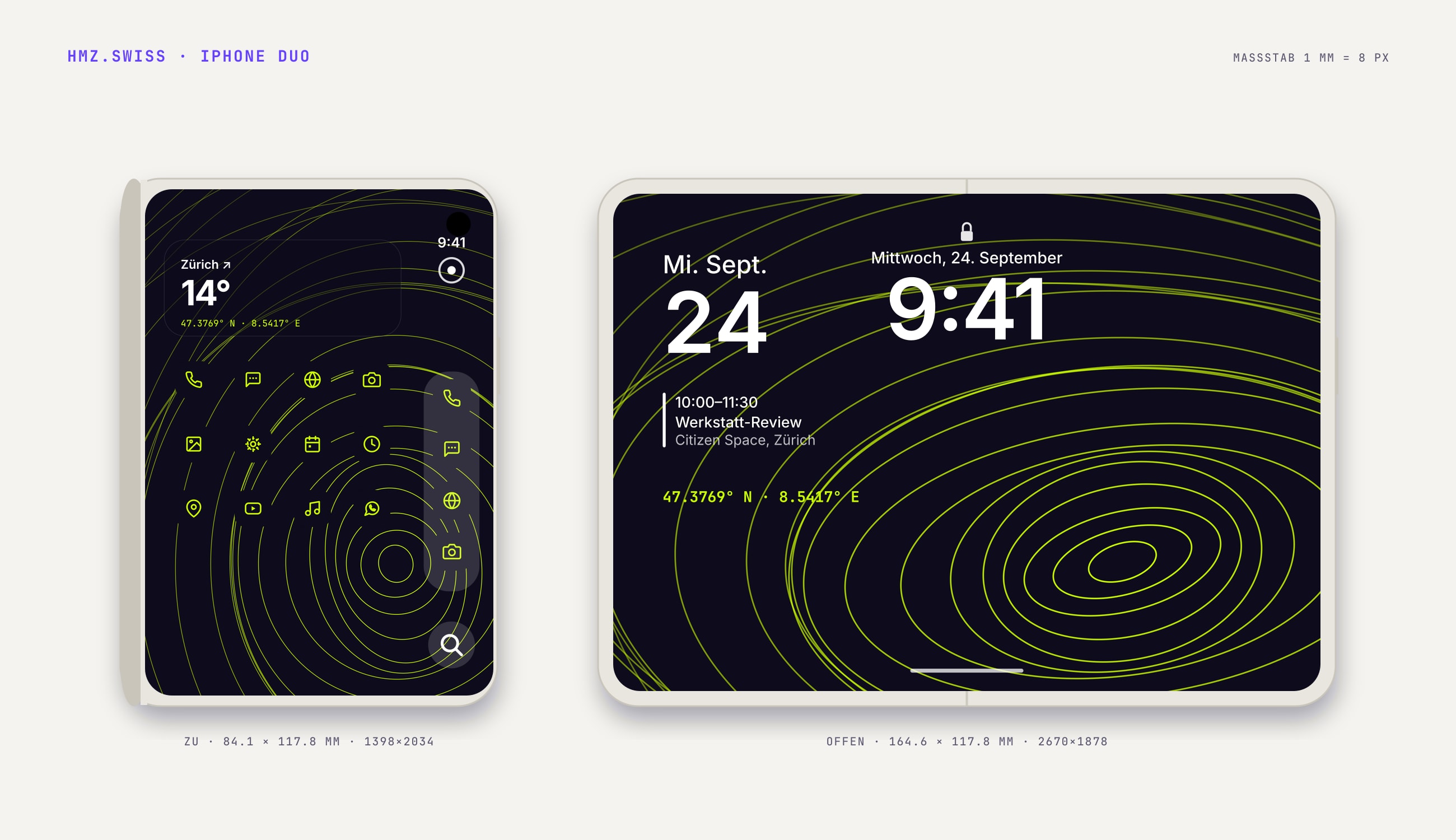
The same 34 wallpapers as for the Fold, rendered for the iPhone Duo: inner 2670×1878 (landscape), cover 1398×2034. Plus both icon sets as PNG for the Shortcuts app. iOS has no icon packs, so it is one icon at a time, and honestly only worth it for the apps on your first page.
Wall-
papers.
Download the zip, save to Photos, then Settings → Wallpaper → Add New Wallpaper. Turn off "Perspective" when cropping so nothing shifts. Use main for the inner screen and cover for the outer one.
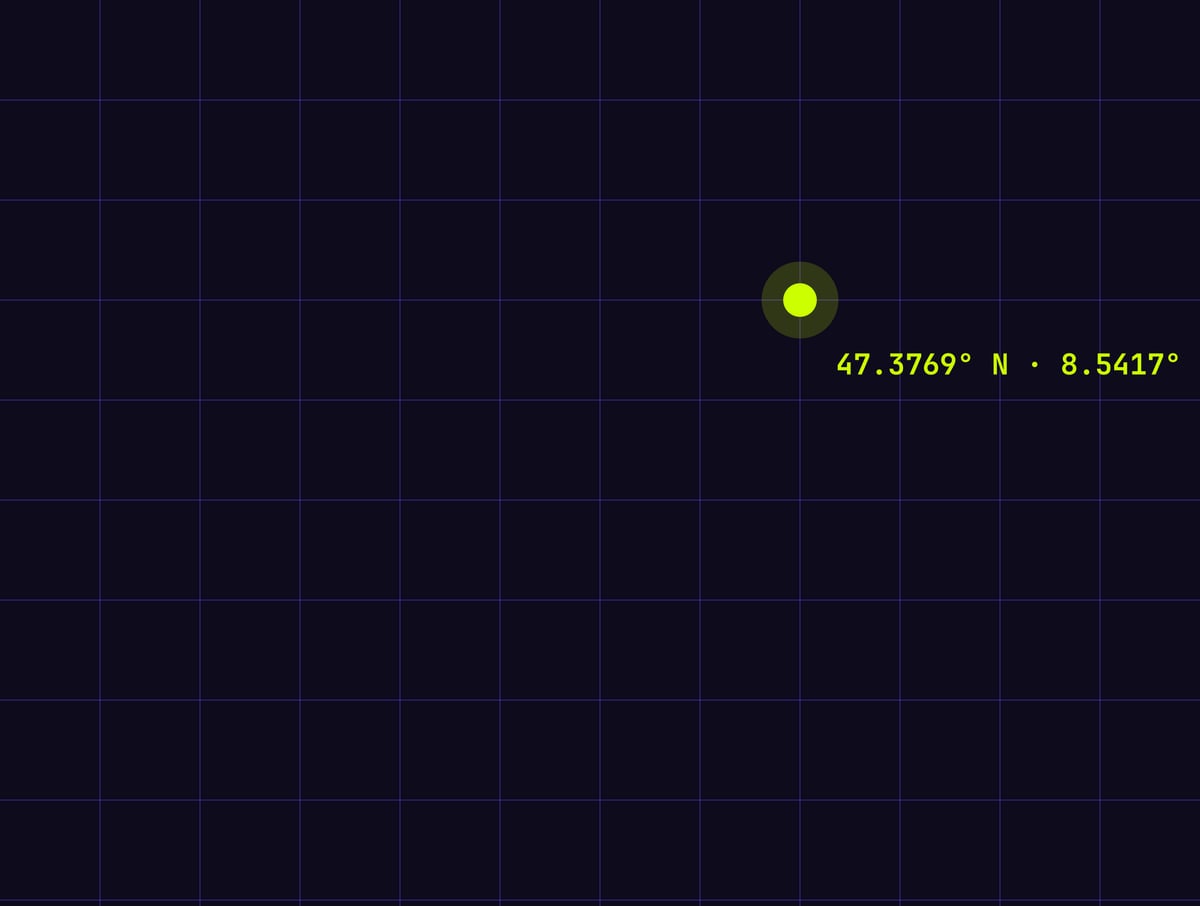
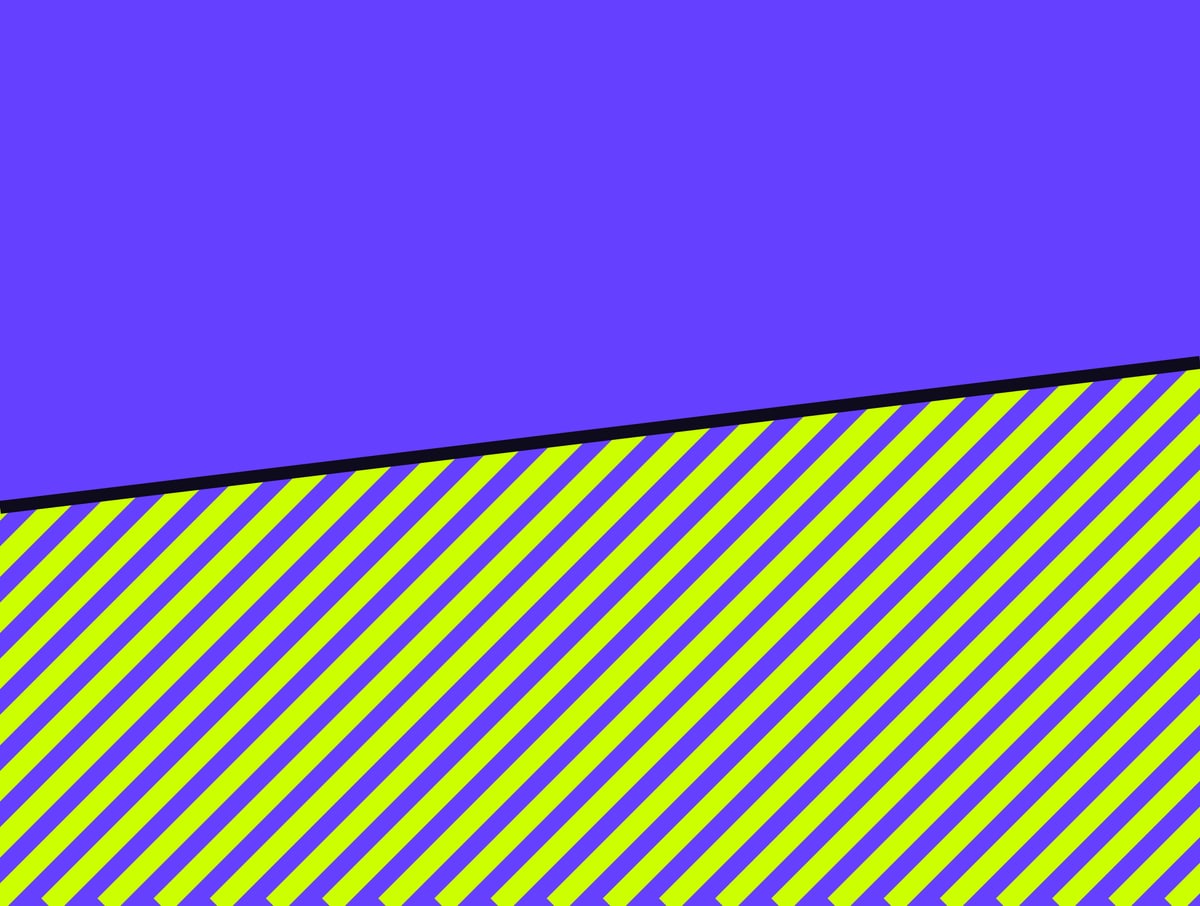
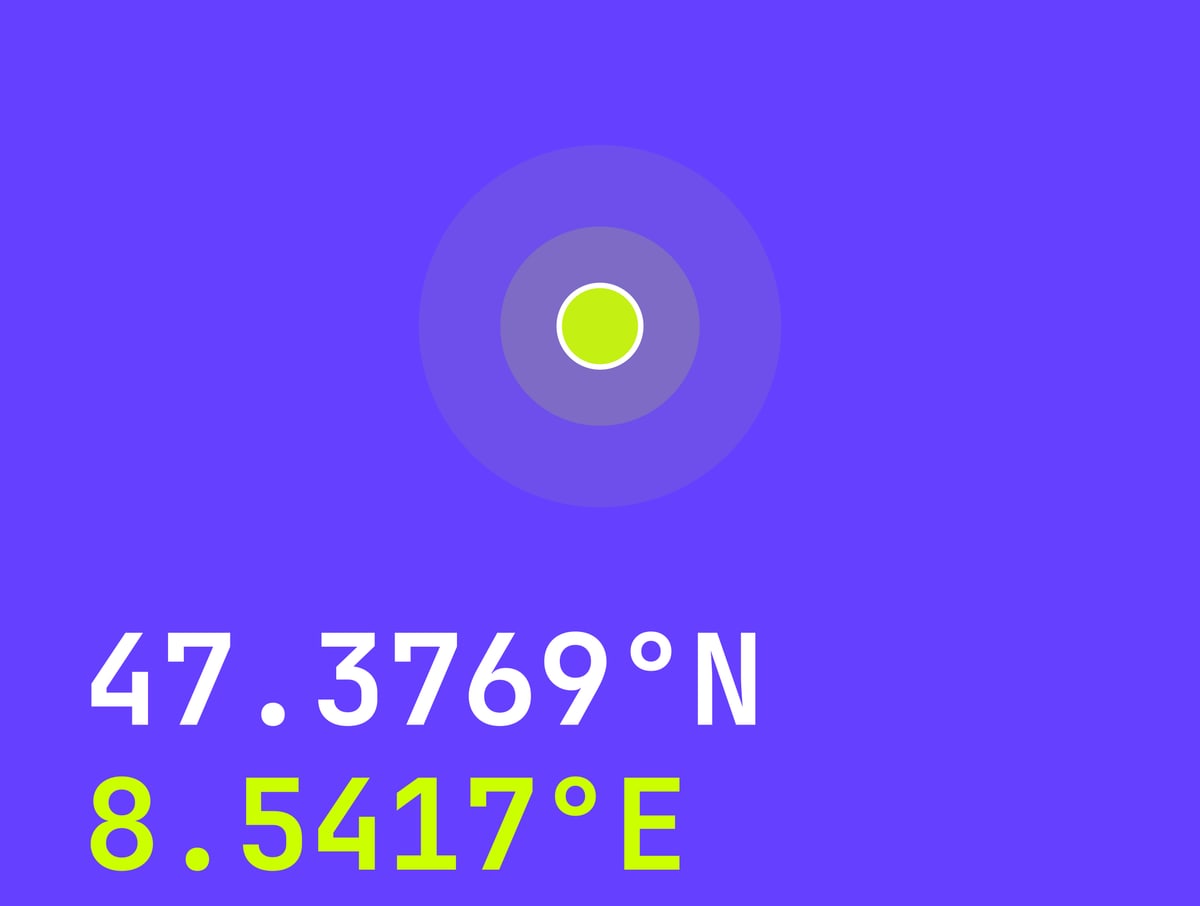
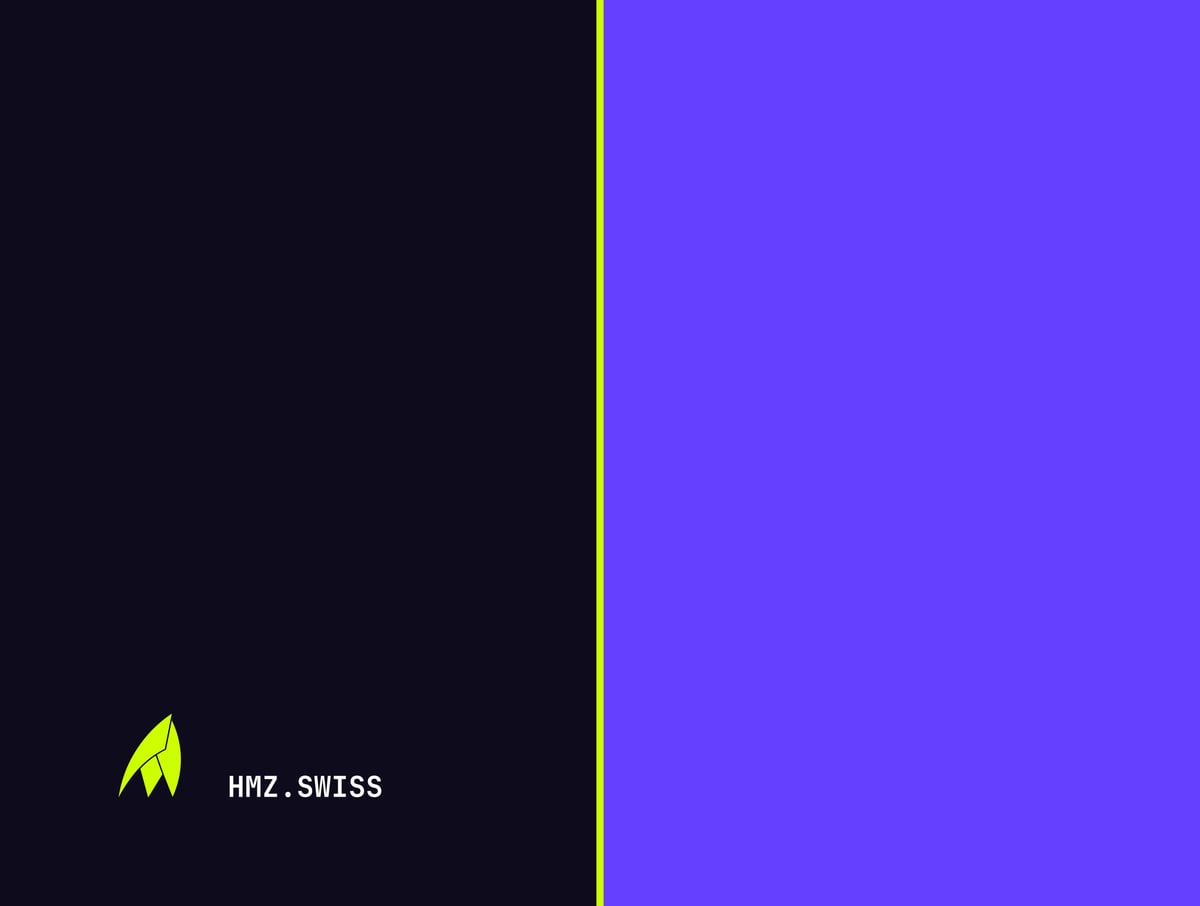
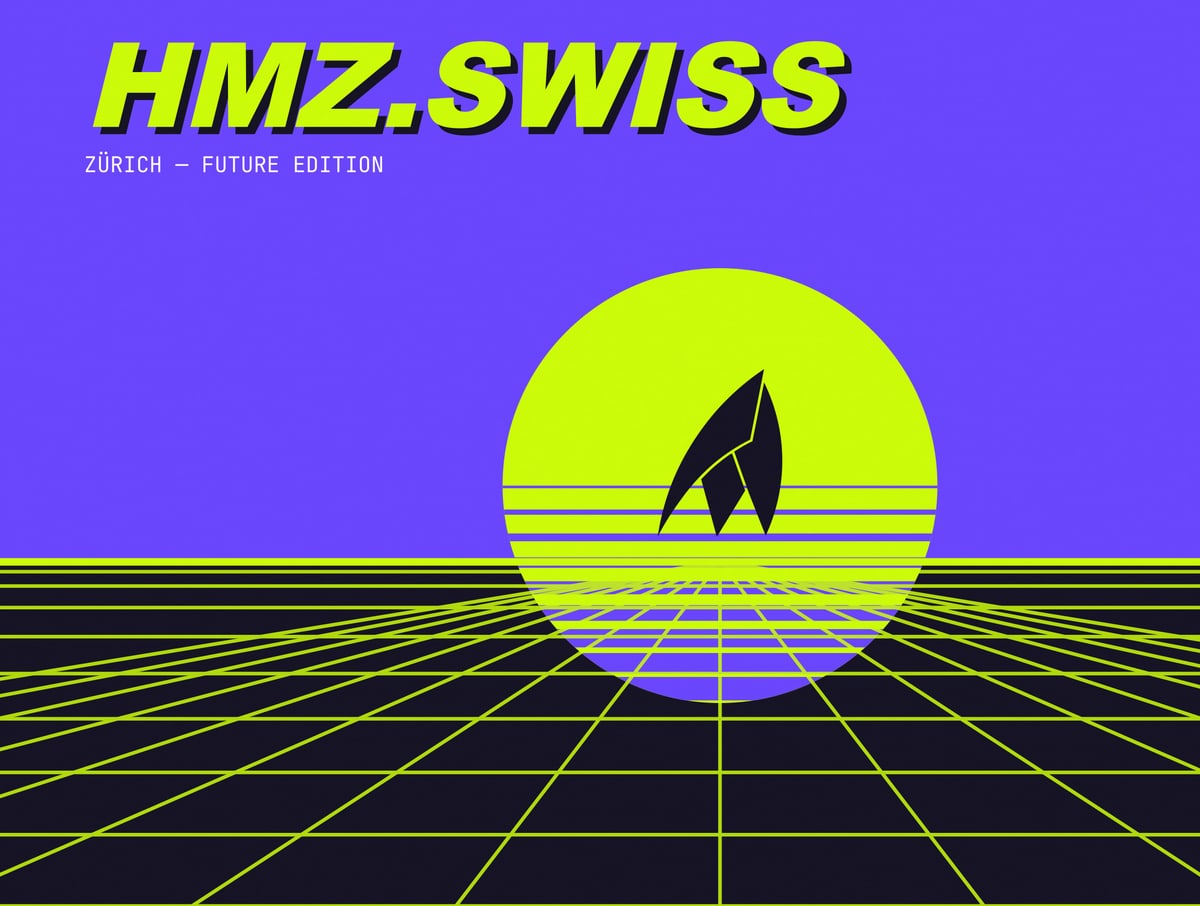
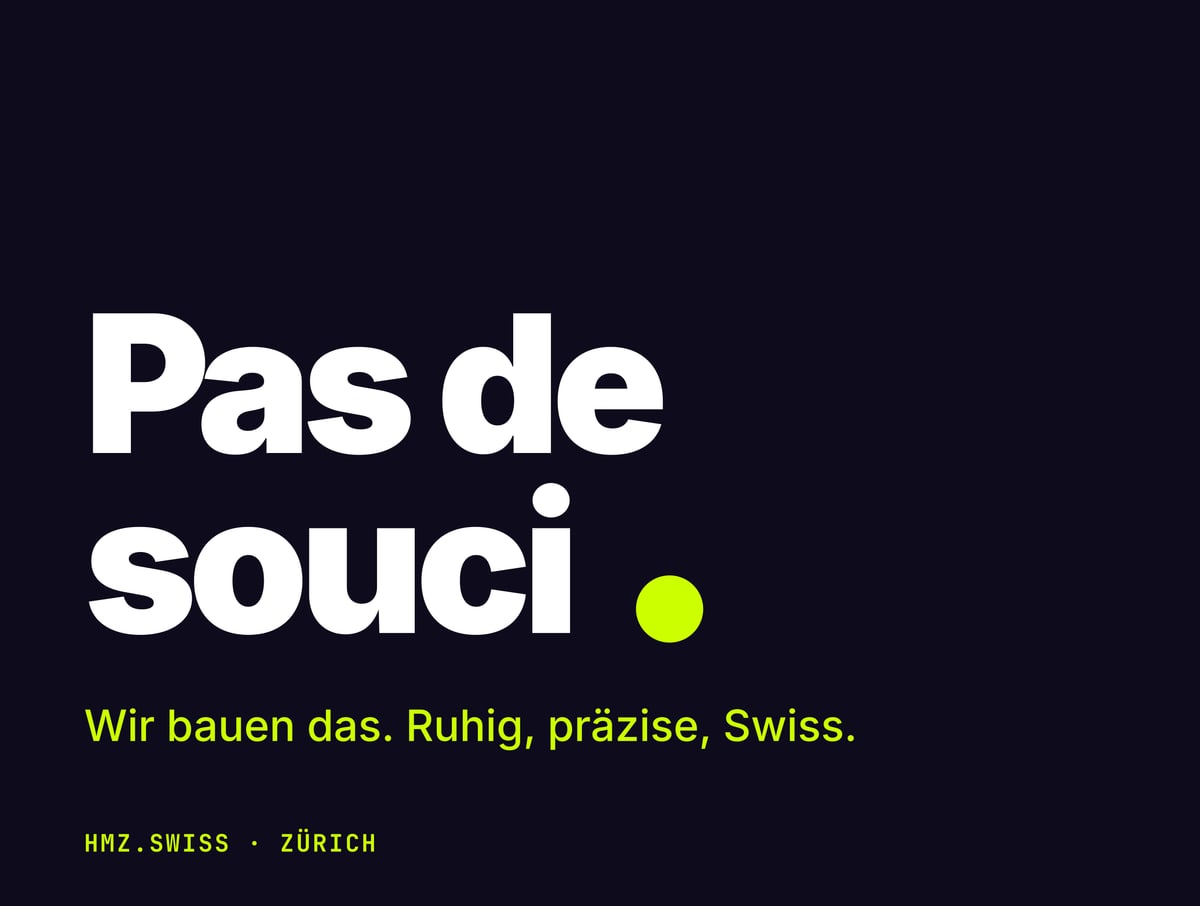
Set 1 · Swiss
Calm, geometric, brand colours. In "Seam" the lime line sits exactly on the fold.





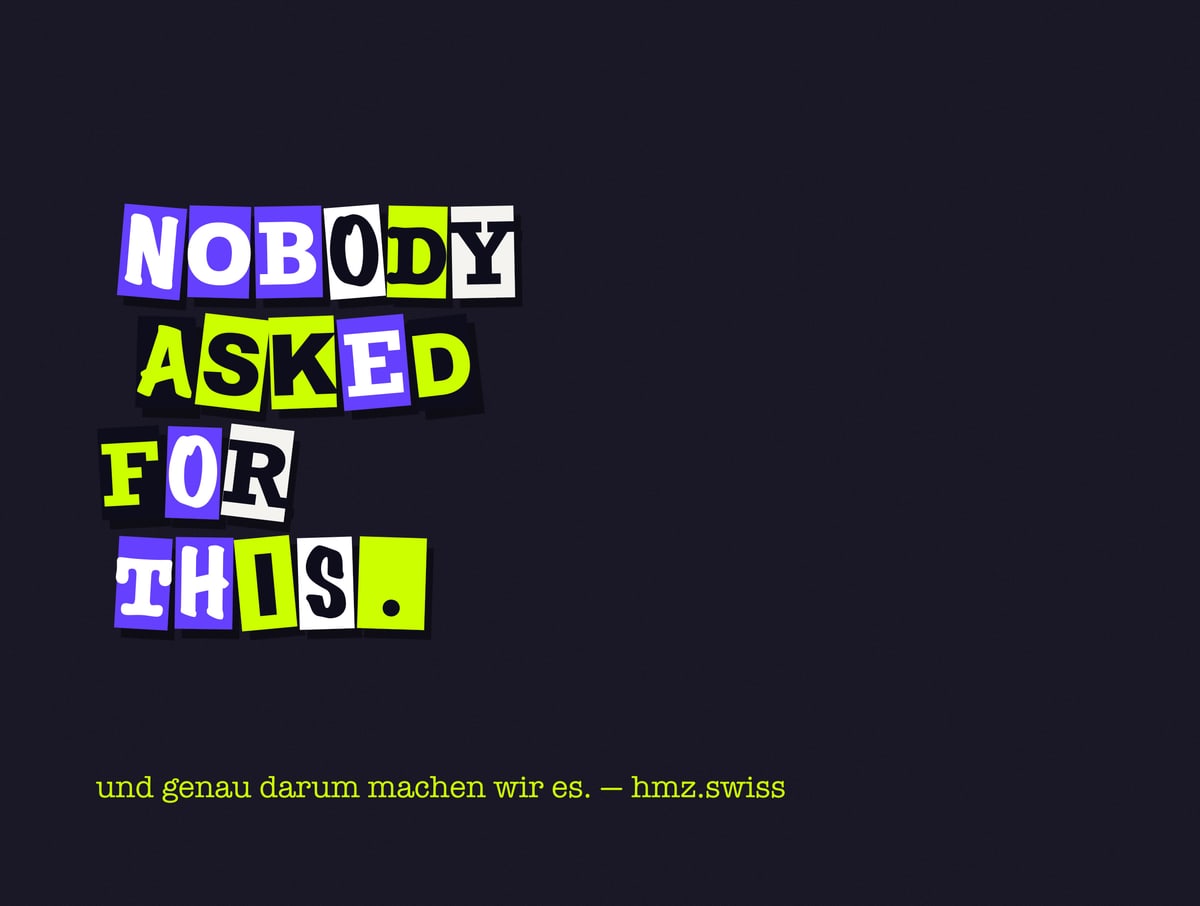
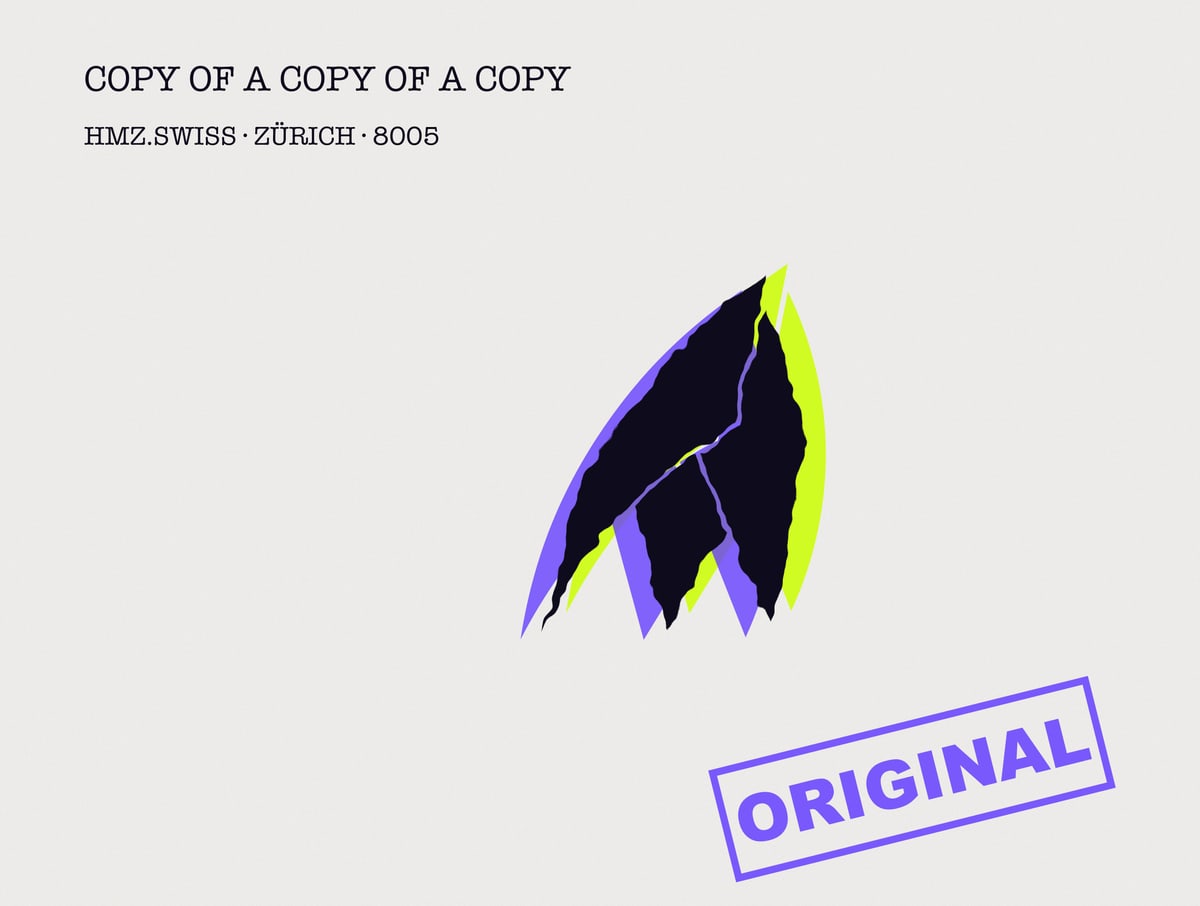
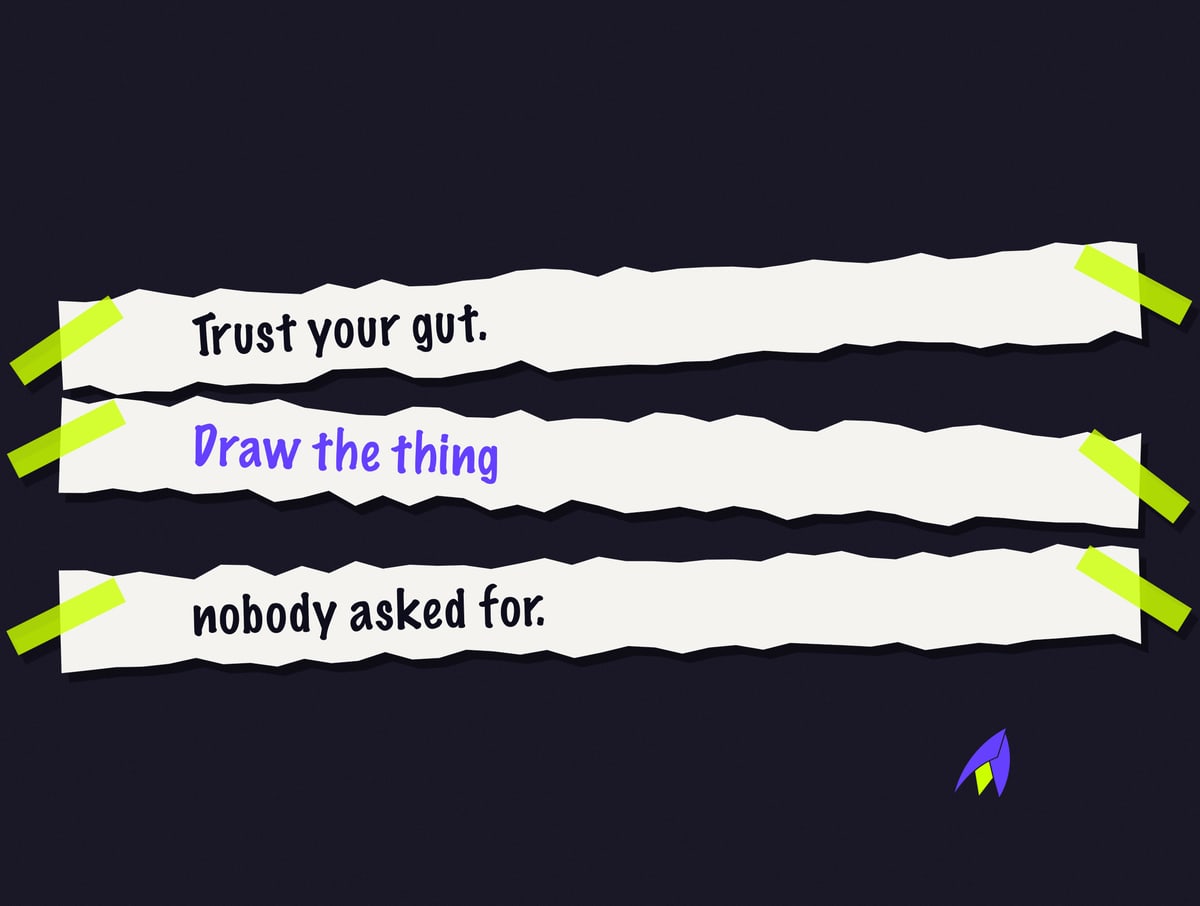
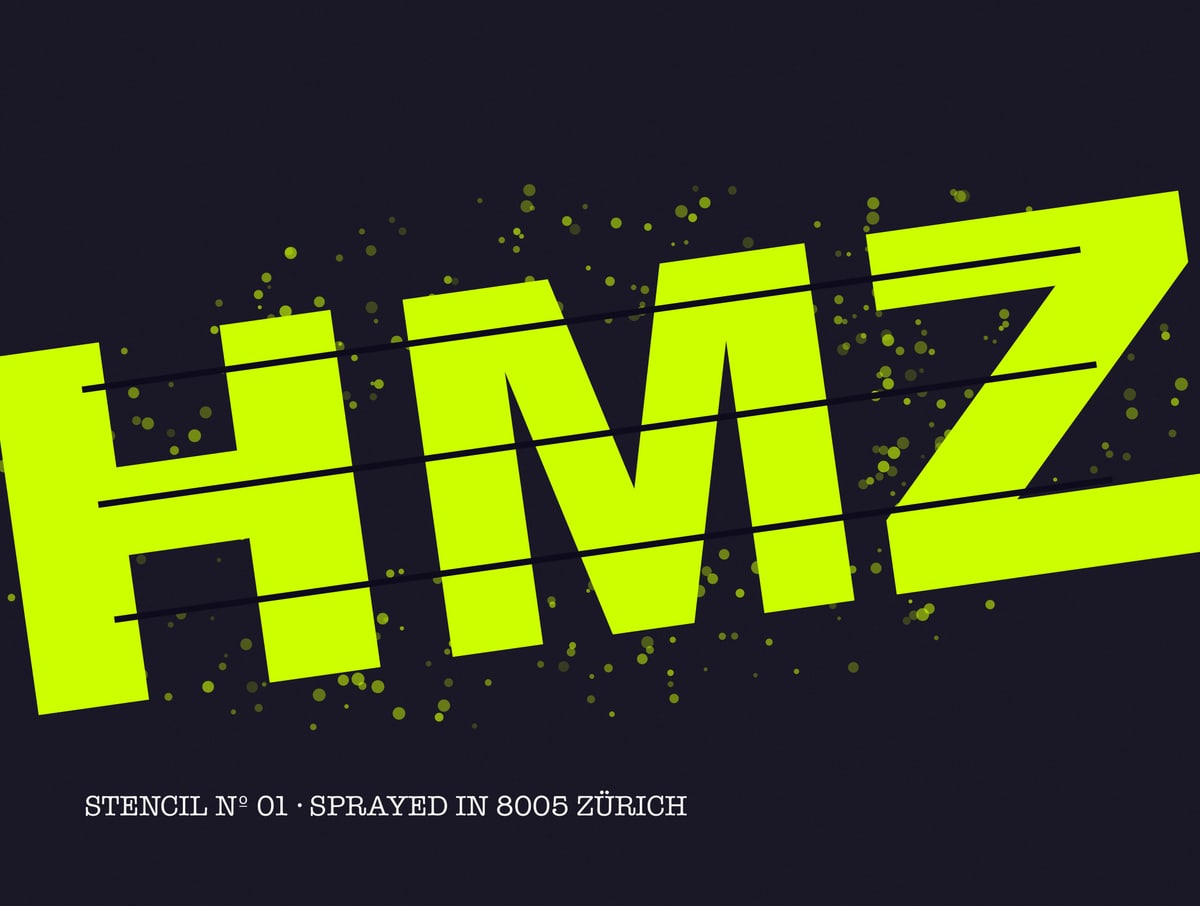
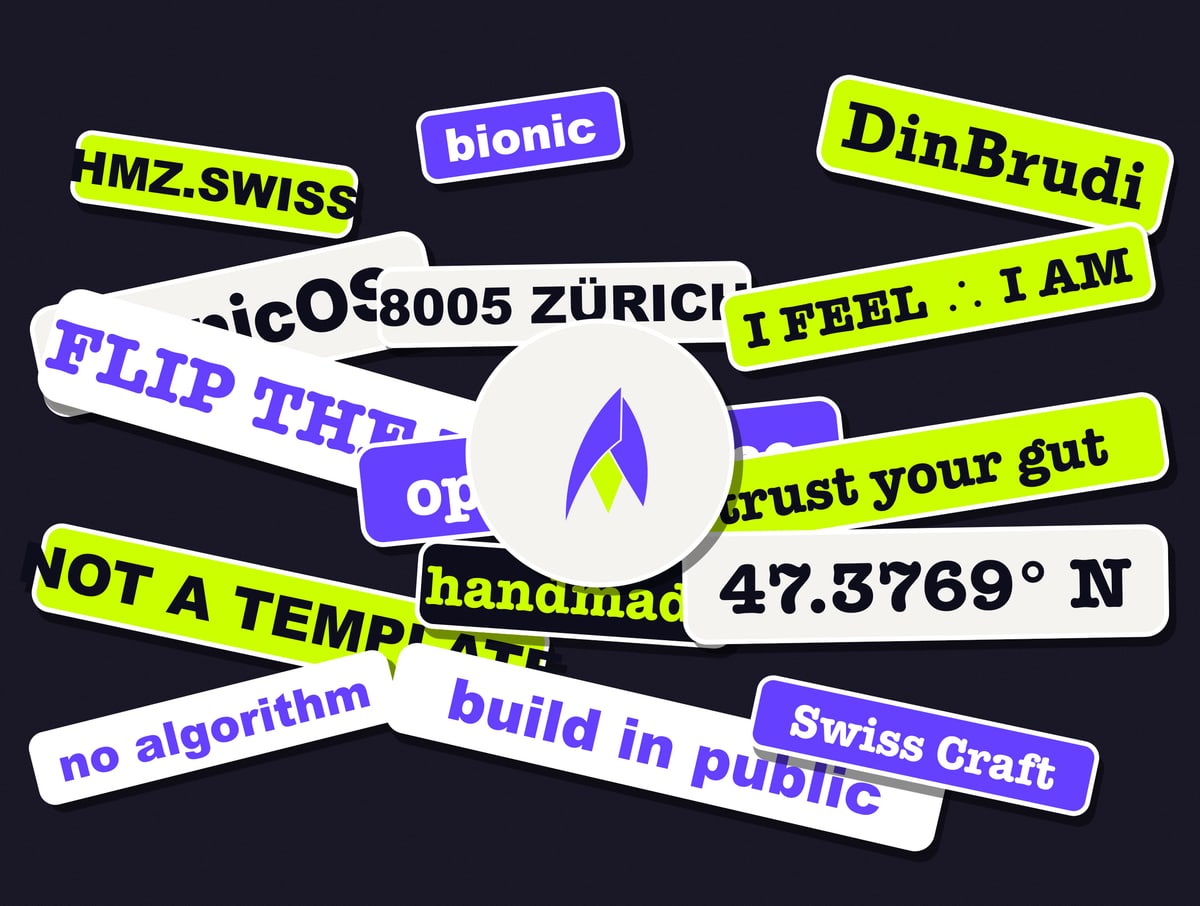
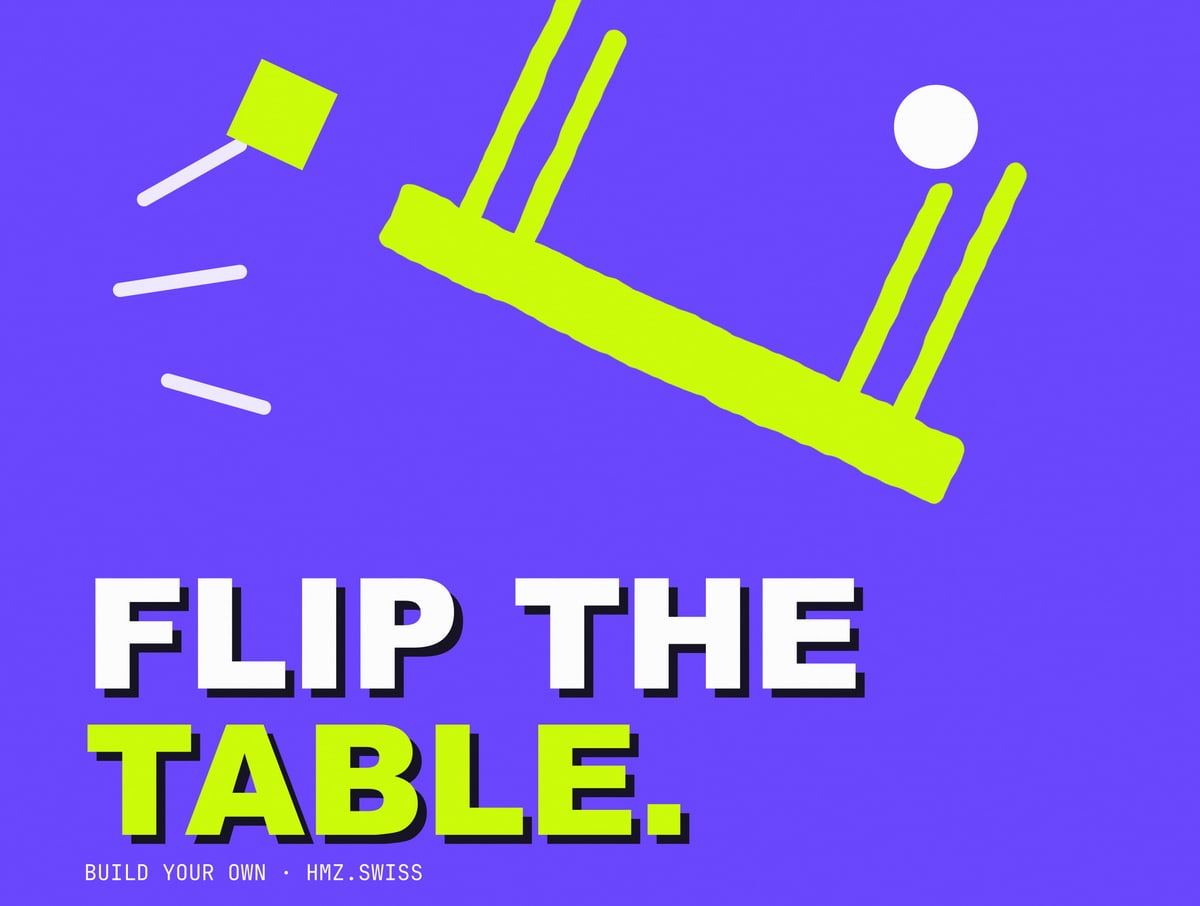
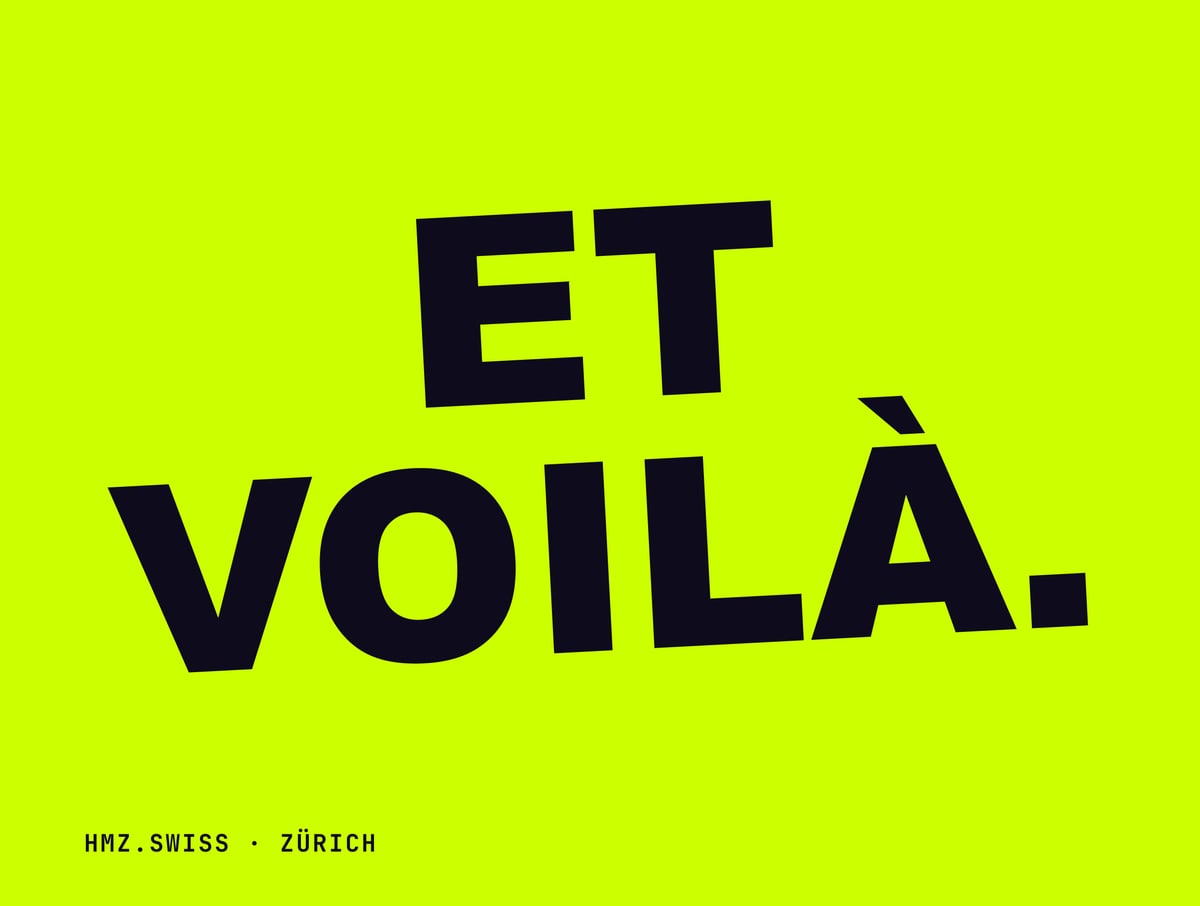
Set 2 · Flip the Table
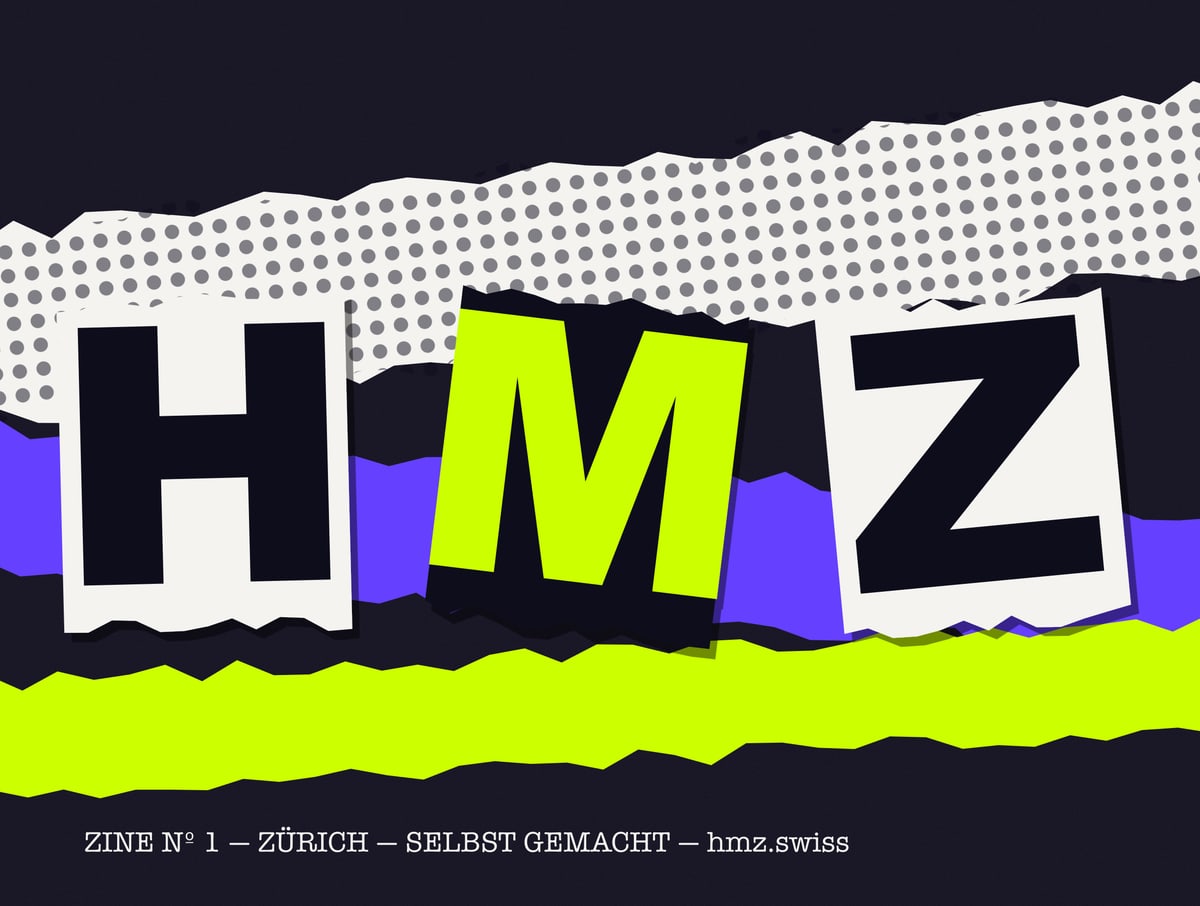
Ransom letters, xerox grain, tape, stickers, retrofuturism. Deliberately imperfect.
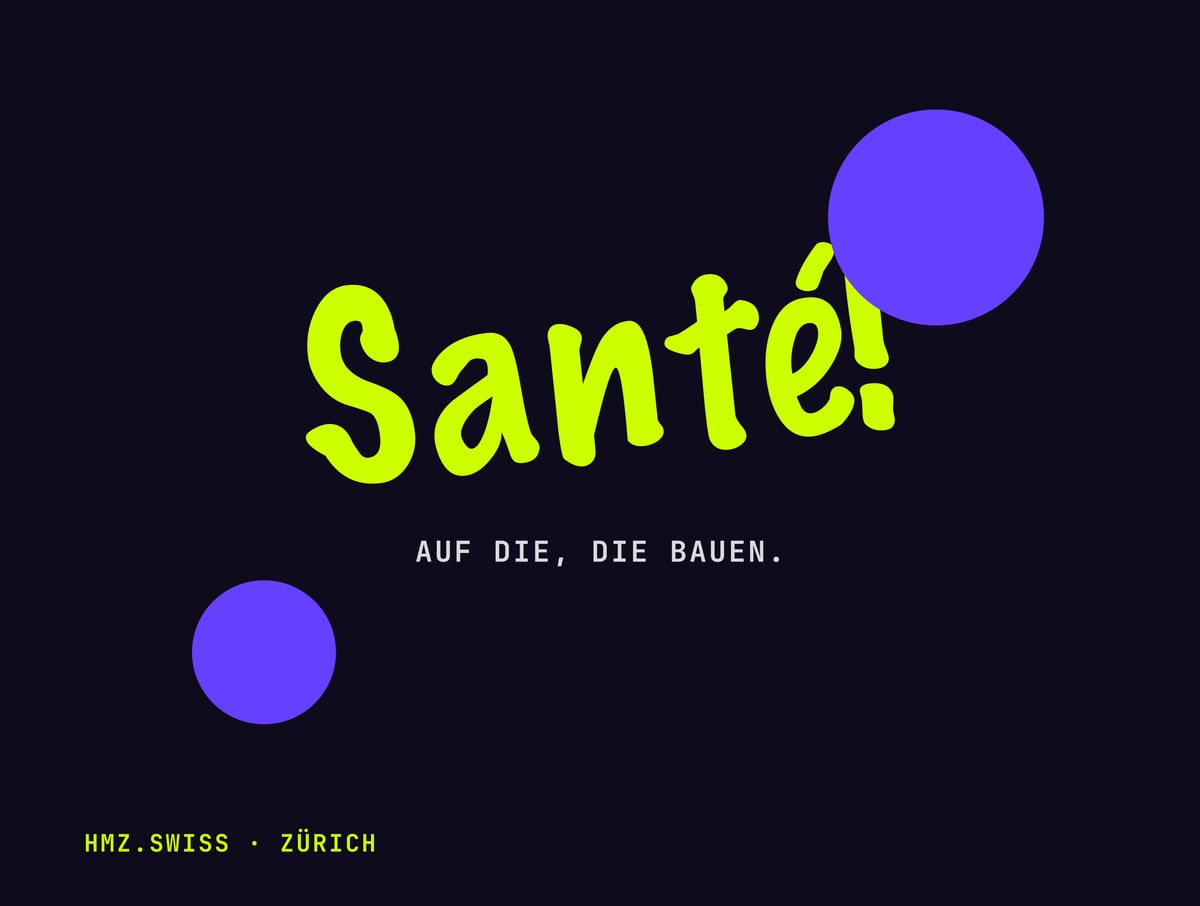
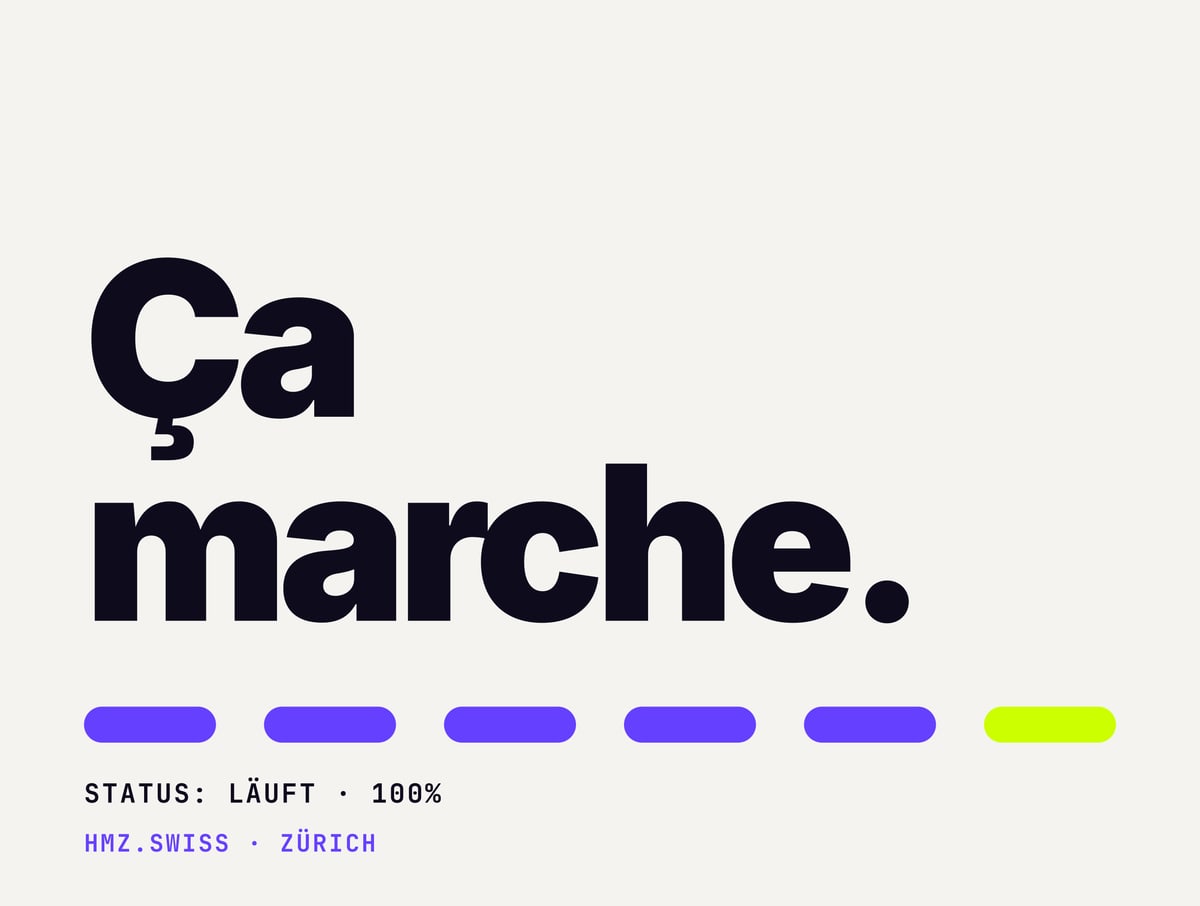
Set 3 · Produits
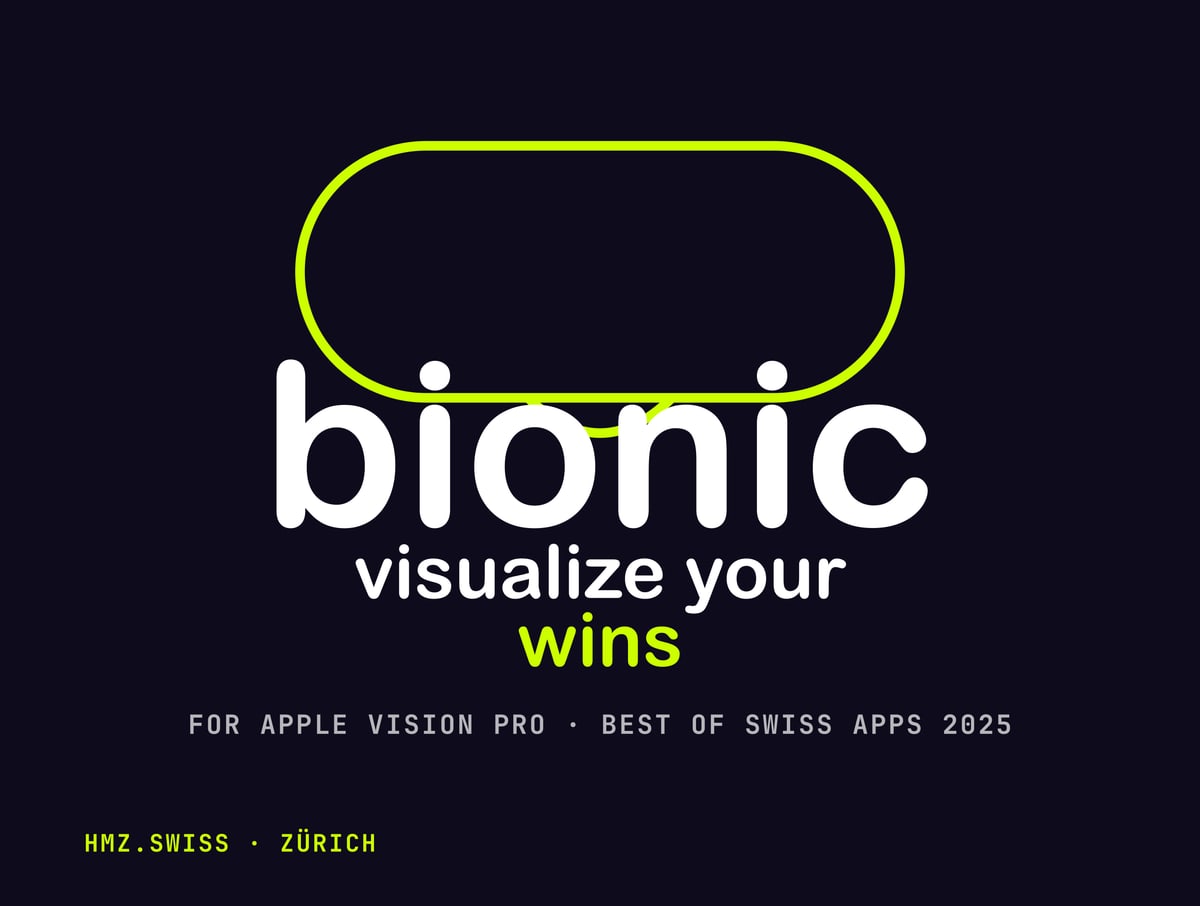
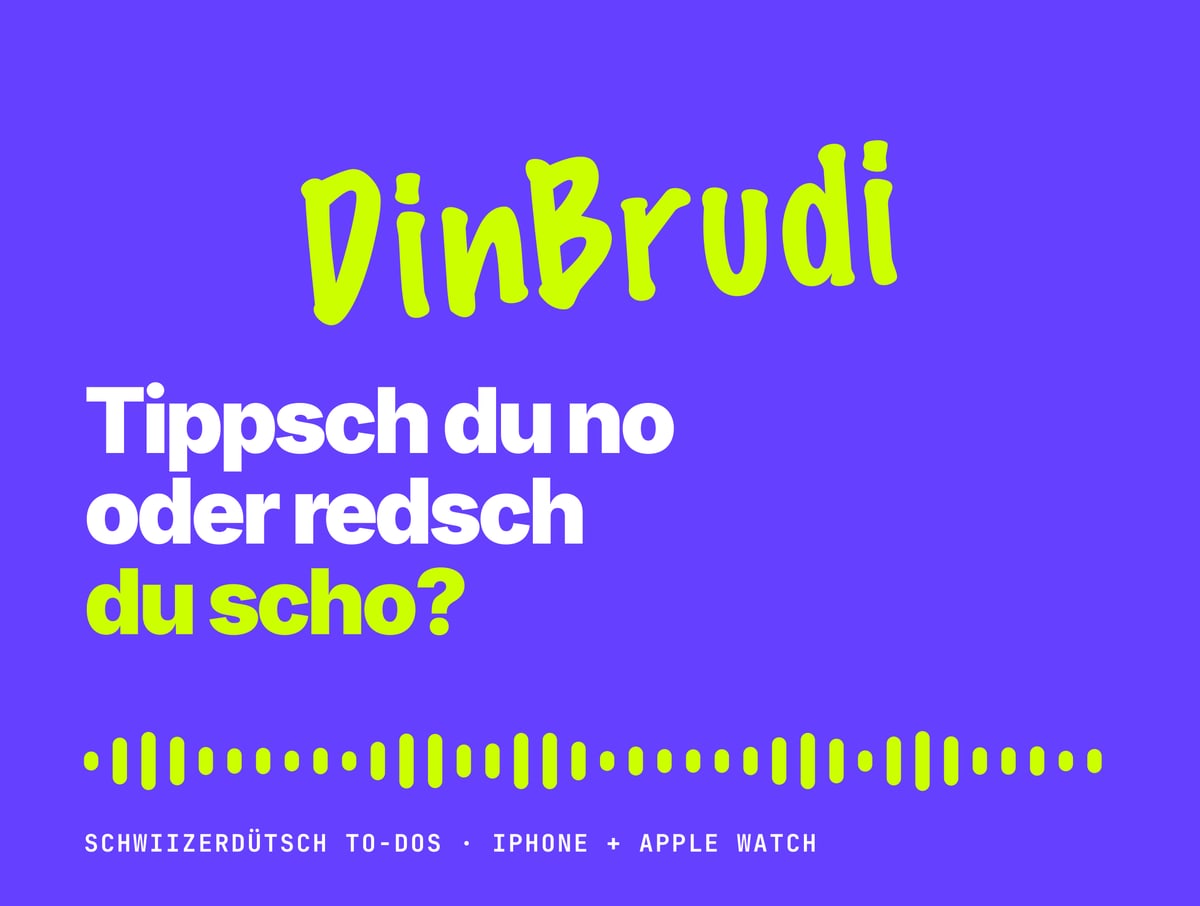
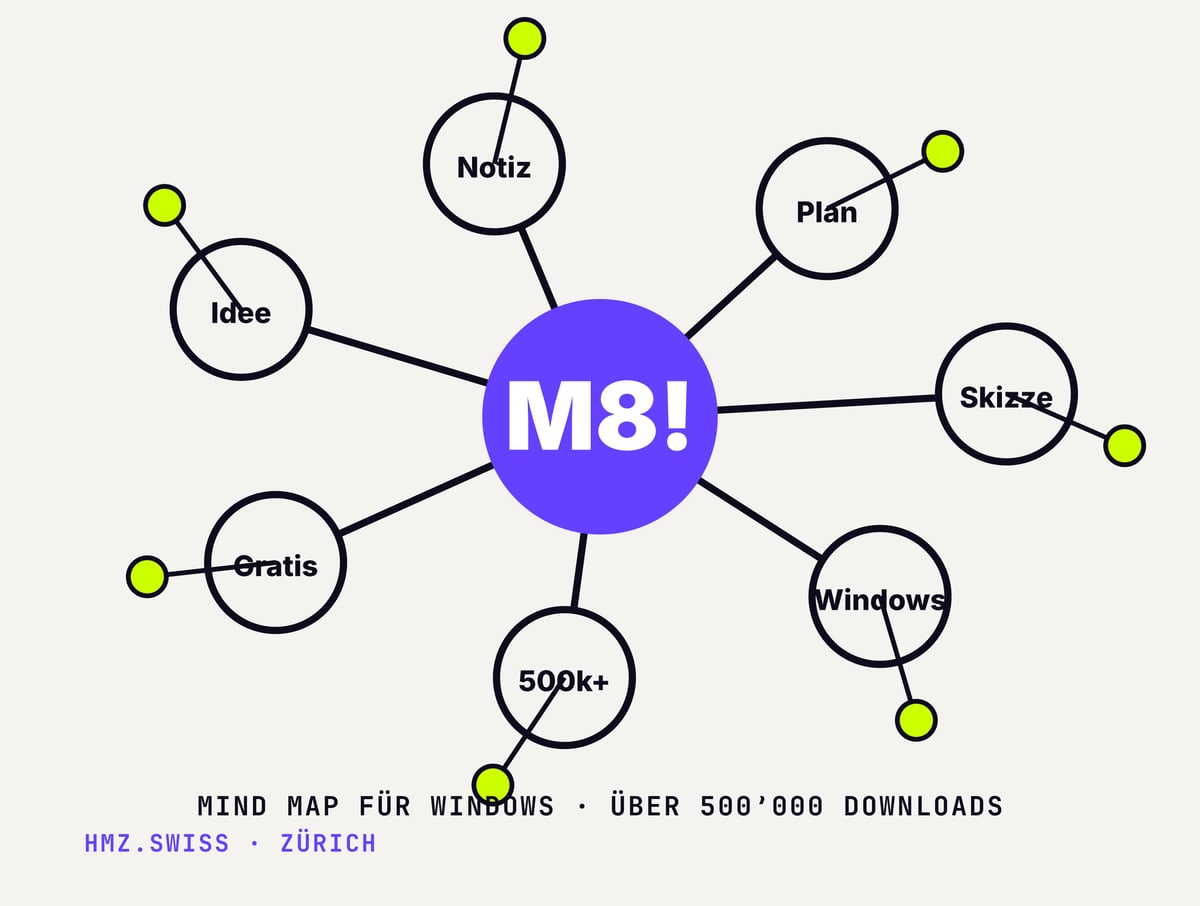
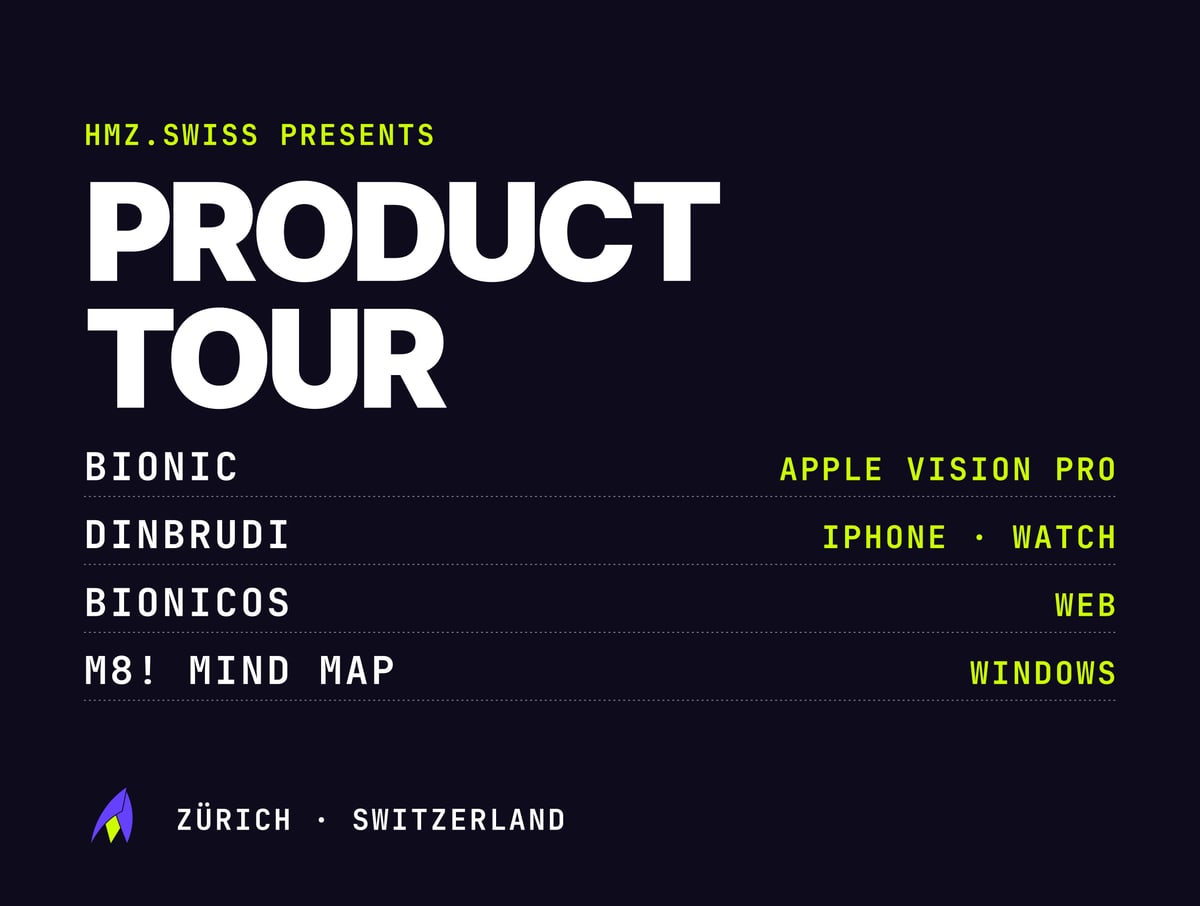
Our products as posters plus a few sayings from French-speaking Switzerland. Ça joue?


Icons on iOS
One icon at a time, via Shortcuts.
Apple does not allow icon packs. What works: a shortcut opens the app and gets its own image on the home screen. All 183 icons come as 1024-pixel PNGs, iOS adds its own rounded corners.
- 01
Save icons to Photos
Download the zip on your iPhone, tap it in the Files app, select the PNGs you want and save them to Photos. An album "HMZ Icons" saves you searching later.
- 02
One shortcut per app
Shortcuts → "+" → action "Open App" → pick the app. Tap the name at the top → "Add to Home Screen" → tap the icon → "Choose Photo" → pick the PNG → name it → Add.
- 03
Tidy the original away
Long press the original app → "Remove App" → "Remove from Home Screen". It stays installed, only the shortcut icon sits on the home screen.
Limitations: shortcut icons show no notification badges, and tapping opens the app via a short detour. Worth it for the ten to twenty apps you use every day.
Quick alternative: long press the home screen → Edit → Customize → "Tinted" and drag the colour to violet. Not an icon pack, but a uniform look in ten seconds.